
NurViewer · PDF & conversion
PDF highlights & review
Feedback scattered across email messages is hard to reconnect with a page. A reader needs to see what matters and leave a clear explanation where the issue actually appears.
THE PRACTICAL VALUE
Why this step deserves its own workflow
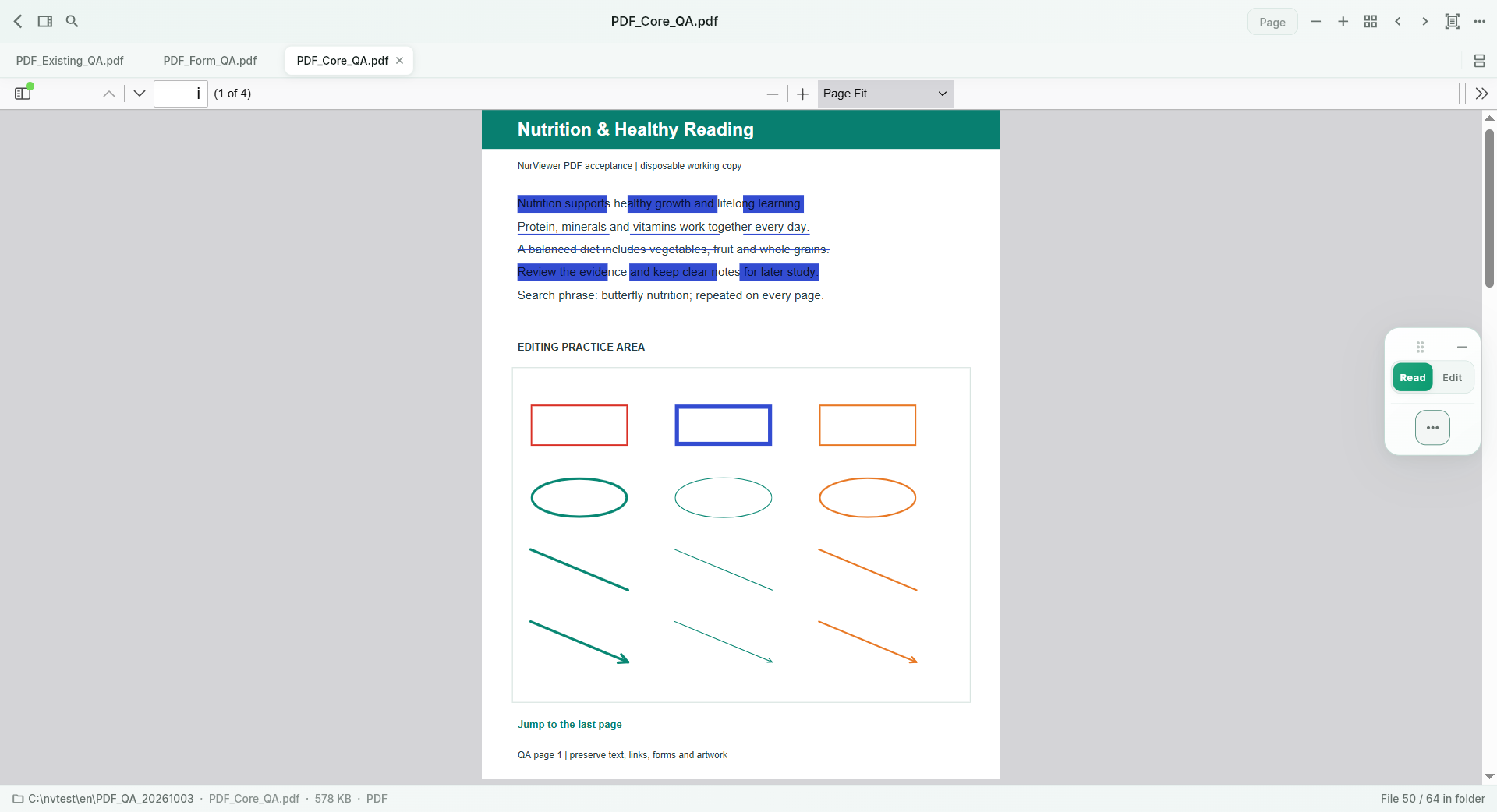
Use supported standard PDF highlights, underlines, strikeouts, sticky notes and drawing objects. Review comments in the document, edit or remove supported objects and save a copy. This keeps a report review, study session or revision discussion attached to the material being discussed.
A PRACTICAL SEQUENCE
Start with the material you actually need.
Check representative material before deciding how much more to process.
- Open the PDF and mark the relevant text or region.
- Add an explanation and inspect the comment list.
- Save a separate copy and verify the result before sharing.
EDITION & SCOPE
Know the scope before you commit.
Basic PDF annotations are included in Free. Object support and interoperability can vary by PDF and external reader; signatures or protected documents need additional care.
Free has no trial expiry: common-format reading, ordinary PDF annotations and supported ordinary document/image-to-PDF export remain available. Recognition, specialist formats and advanced tools have their own allowances or tier requirements.
Compare Free, Standard and Pro →Images may retain historical layouts. Demonstration books, dictionaries and media are not bundled.
A USEFUL QUESTION
Are reading notes the same as standard PDF comments?
No. Rich PDF/EPUB reading notes and standard PDF annotation objects are different workflows with different storage and limits.
CONTINUE THE WORKFLOW
A useful next step.
Keep reading, understanding and organising around the same material.
Dictionaries & knowledge
Long-form reading notes
A highlighted sentence is easy to collect and easy to forget. Real study also needs your explanation, an illustration, a comparison table and enough space to connect them.
Explore the workflow →PDF & conversion
PDF forms & handwritten signatures
A form arrives as a PDF and asks for a few answers and a signature. Printing, handwriting and scanning it back adds several steps just to return a simple document.
Explore the workflow →PDF & conversion
PDF to PowerPoint
Reference material arrives as a PDF, but the next task is a presentation. Starting every slide from an empty canvas repeats the extraction and organisation work before you can explain the idea.
Explore the workflow →