
NurViewer · OCR & phonetic symbols
Images & scanned-page OCR
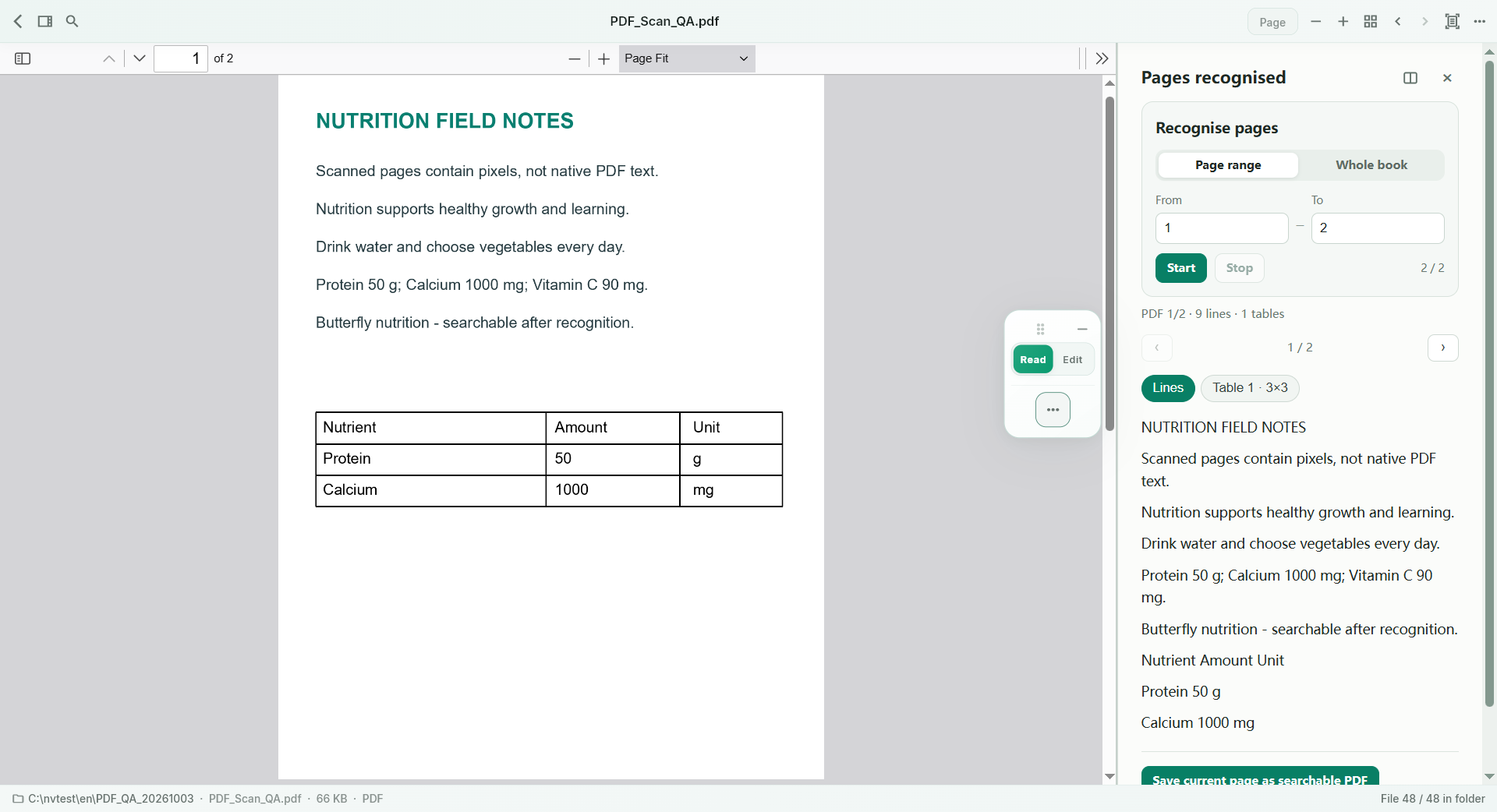
A photographed handout or scanned page contains words you can see but cannot copy. Retyping the entire page wastes effort when only a paragraph or a few labels are needed.
THE PRACTICAL VALUE
Why this step deserves its own workflow
Recognise a whole page or a selected region locally, keep the original nearby and reuse the resulting text. Choosing the smallest useful region helps you focus the review. The workflow supports the practical move from pixels to a draft you can search, quote or edit, while keeping correction in your hands.
A PRACTICAL SEQUENCE
Start with the material you actually need.
Check representative material before deciding how much more to process.
- Open the image or scanned PDF page.
- Choose whole-page recognition or select the relevant region.
- Review names, numbers and symbols before copying or exporting.
EDITION & SCOPE
Know the scope before you commit.
Low resolution, handwriting, skew, glare and unusual scripts can reduce quality. OCR is not guaranteed transcription. Free allows 2 source pages/day with watermarked exports; Standard 300 and Pro 1,500.
Free has no trial expiry: common-format reading, ordinary PDF annotations and supported ordinary document/image-to-PDF export remain available. Recognition, specialist formats and advanced tools have their own allowances or tier requirements.
Compare Free, Standard and Pro →Images may retain historical layouts. Demonstration books, dictionaries and media are not bundled.
A USEFUL QUESTION
Are my document images uploaded to an OCR cloud?
Ordinary file recognition runs locally. Sign-in, licensing and quota checks are separate account-service activity.
CONTINUE THE WORKFLOW
A useful next step.
Keep reading, understanding and organising around the same material.
OCR & phonetic symbols
Multi-column OCR reading order
When OCR reads across two columns as if they were one line, the characters may be correct but the paragraph is nonsense. Dictionaries, journals and reference pages need the reading order to survive recognition.
Explore the workflow →OCR & phonetic symbols
IPA phonetic-symbol OCR
A copied dictionary entry is not useful if its pronunciation is wrong. Small marks such as stress and vowel length carry meaning, yet can disappear or be confused with punctuation in a scanned English dictionary.
Explore the workflow →OCR & phonetic symbols
Make scanned PDFs searchable
A scan can preserve a page perfectly while hiding every word from search. Months later, finding one term in a thick report becomes a manual page-by-page task.
Explore the workflow →