
NurViewer · Batch & document comparison
Batch PDF export
Preparing many files one by one repeats the same setup and interrupts other work. The real problem is the repeated handling, not simply whether an individual file can be converted.
THE PRACTICAL VALUE
Why this step deserves its own workflow
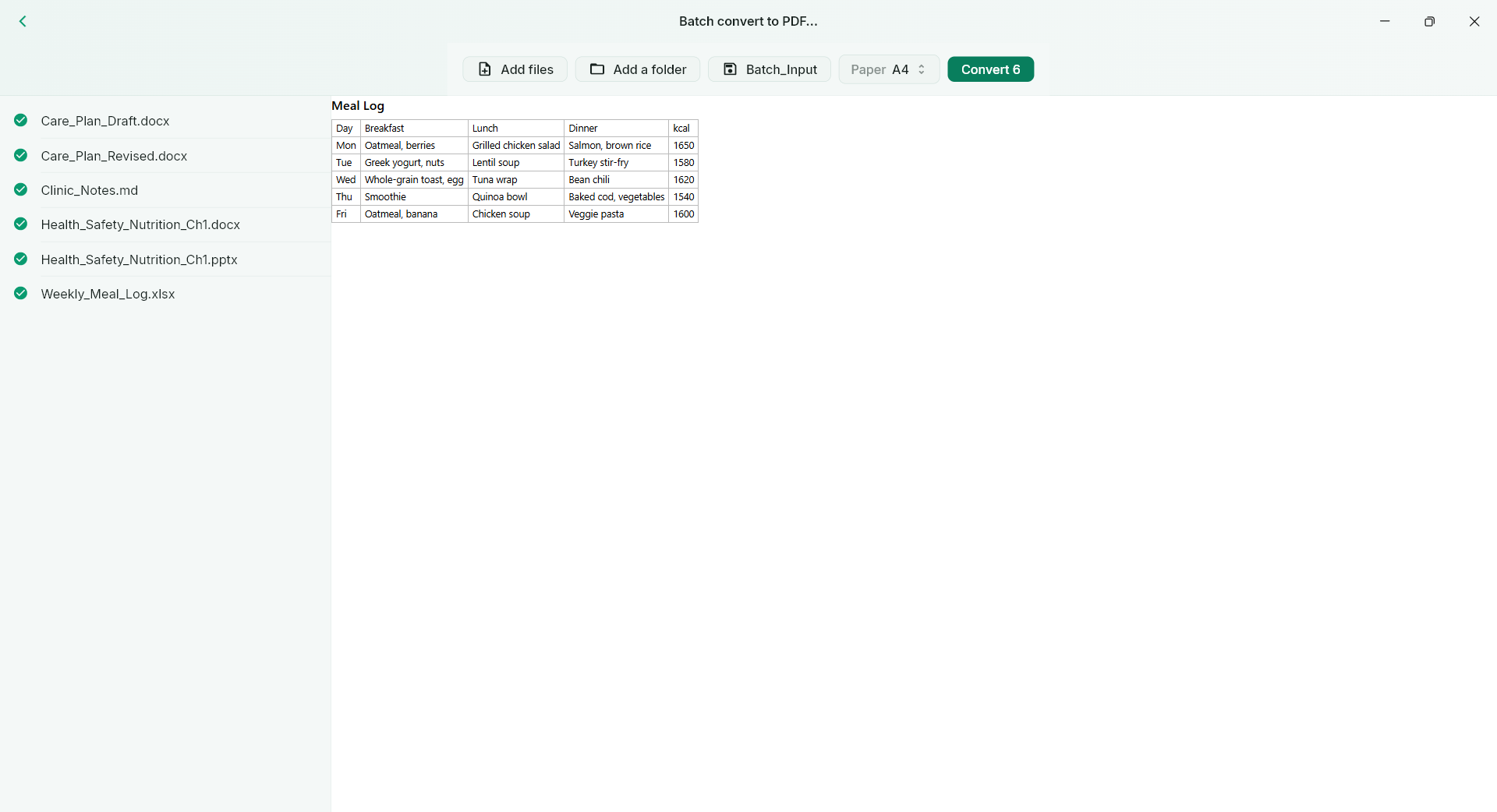
Pro batch export organises supported files into a shared processing workflow. Review the sources and delivered outputs as a group while respecting each converter’s own support range. It helps turn a sequence of repetitive operations into an organised task you can inspect and manage.
A PRACTICAL SEQUENCE
Start with the material you actually need.
Check representative material before deciding how much more to process.
- Choose supported source files for the batch.
- Review the available output settings and destination.
- Inspect delivered files and handle any failures individually.
EDITION & SCOPE
Know the scope before you commit.
Batch export requires Pro. It does not make an unsupported converter work or remove recognition/conversion allowances. Preserve originals and inspect important outputs.
Free has no trial expiry: common-format reading, ordinary PDF annotations and supported ordinary document/image-to-PDF export remain available. Recognition, specialist formats and advanced tools have their own allowances or tier requirements.
Compare Free, Standard and Pro →Images may retain historical layouts. Demonstration books, dictionaries and media are not bundled.
A USEFUL QUESTION
If one format opens, must it also batch-convert?
No. Viewing coverage and conversion coverage are separate. Check the actual output route for that source.
CONTINUE THE WORKFLOW
A useful next step.
Keep reading, understanding and organising around the same material.
PDF & conversion
Documents & images to PDF
A recipient wants one convenient PDF, but your source is a document or a collection of images. Hunting for a separate converter for an everyday task adds unnecessary friction.
Explore the workflow →Books & reading
Complex EPUB to PDF
A reflowable book is comfortable on screen, but page numbers move when the display changes. Printing selected material or sharing a stable reference is harder when an EPUB contains illustrations, tables or vertical text.
Explore the workflow →Batch & document comparison
Compare document revisions
Two documents have nearly identical names, but you need to know what changed. Alternating windows makes omissions hard to see and forces you to remember one version while reading the other.
Explore the workflow →