NurViewer · Archives & containers
ZIP, RAR & archive browsing
You receive a mixed package of documents and images, but only need one item. Unpacking the entire folder before seeing what is inside creates extra work and duplicate files.
THE PRACTICAL VALUE
Why this step deserves its own workflow
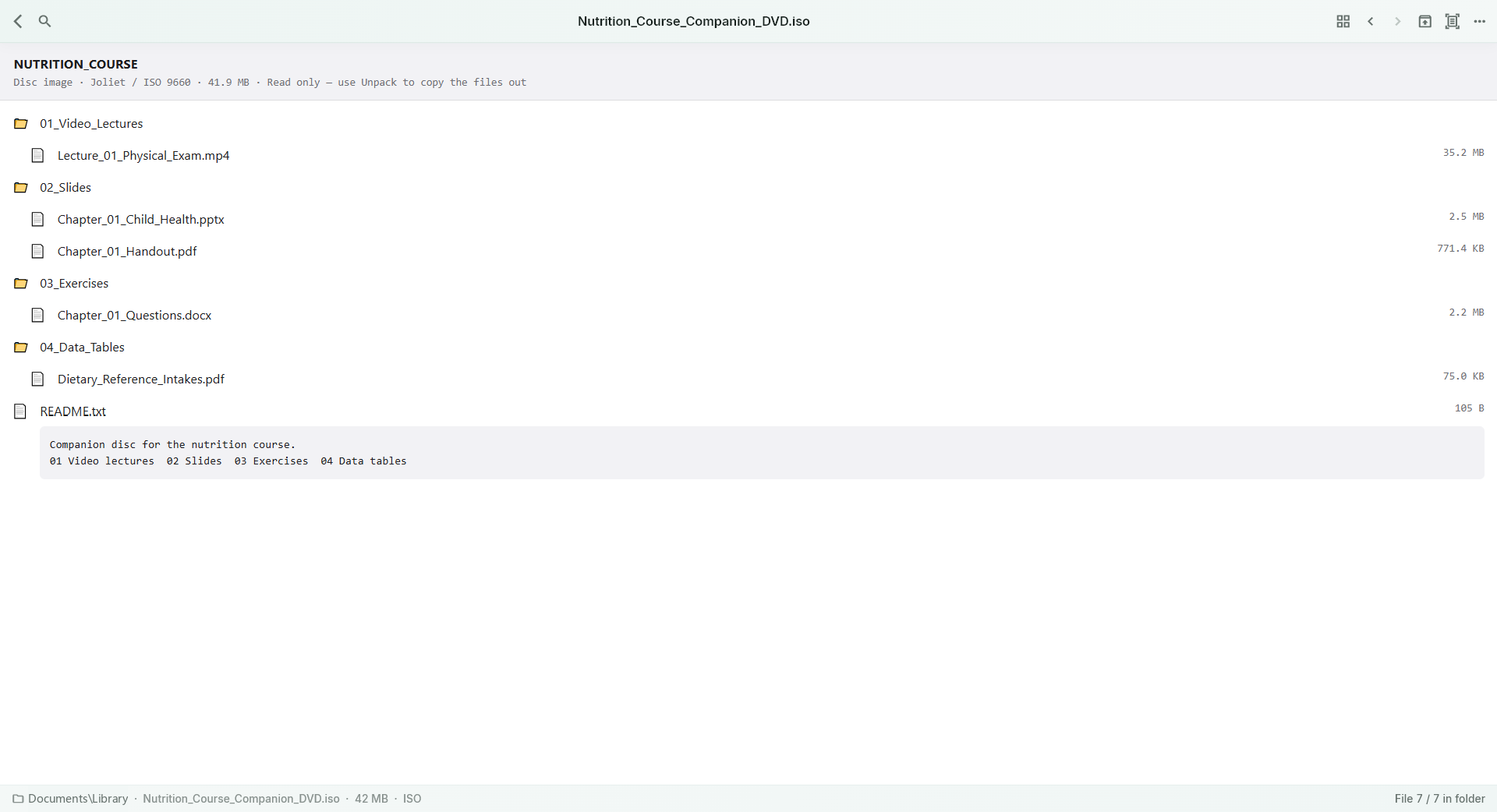
Browse supported archive entries and open supported members through their appropriate viewer. A container becomes a useful entry point into a collection rather than a mandatory extraction chore. This helps with reference packs, scan books and project handovers that arrive as one organised bundle.
A PRACTICAL SEQUENCE
Start with the material you actually need.
Check representative material before deciding how much more to process.
- Open the archive and review its directory.
- Choose a supported member to preview or read.
- Extract separately only when your next task needs it.
EDITION & SCOPE
Know the scope before you commit.
Archive variants, passwords, damaged members, size and nesting limits can affect access. Direct opening may use temporary files. This is not a promise that every member format is viewable.
Free has no trial expiry: common-format reading, ordinary PDF annotations and supported ordinary document/image-to-PDF export remain available. Recognition, specialist formats and advanced tools have their own allowances or tier requirements.
Compare Free, Standard and Pro →Images may retain historical layouts. Demonstration books, dictionaries and media are not bundled.
A USEFUL QUESTION
Does archive support make an encrypted book readable?
No. Container access and the member’s own encryption or DRM are separate matters.
CONTINUE THE WORKFLOW
A useful next step.
Keep reading, understanding and organising around the same material.
Books & reading
Read books inside archives
A useful book is inside a large archive, but you only want to check its contents. Extracting everything creates duplicate folders and makes it harder to keep the original collection organised.
Explore the workflow →Archives & containers
Legacy ZIP filename encodings
A perfectly usable archive becomes difficult to navigate when its filenames appear as unreadable characters. Guessing names is especially frustrating in a scanned book or collection of similarly sized documents.
Explore the workflow →Archives & containers
ISO disc-image browsing
An old software disc or reference collection is stored as ISO, but you only want to check a document inside. Preparing a virtual drive can be more setup than the inspection itself.
Explore the workflow →