
NurViewer · Table recognition
Borderless table recognition
Many comparison sheets and reports use whitespace instead of grid lines. A generic extraction can turn aligned columns into prose, even though you need a table for sorting and comparison.
THE PRACTICAL VALUE
Why this step deserves its own workflow
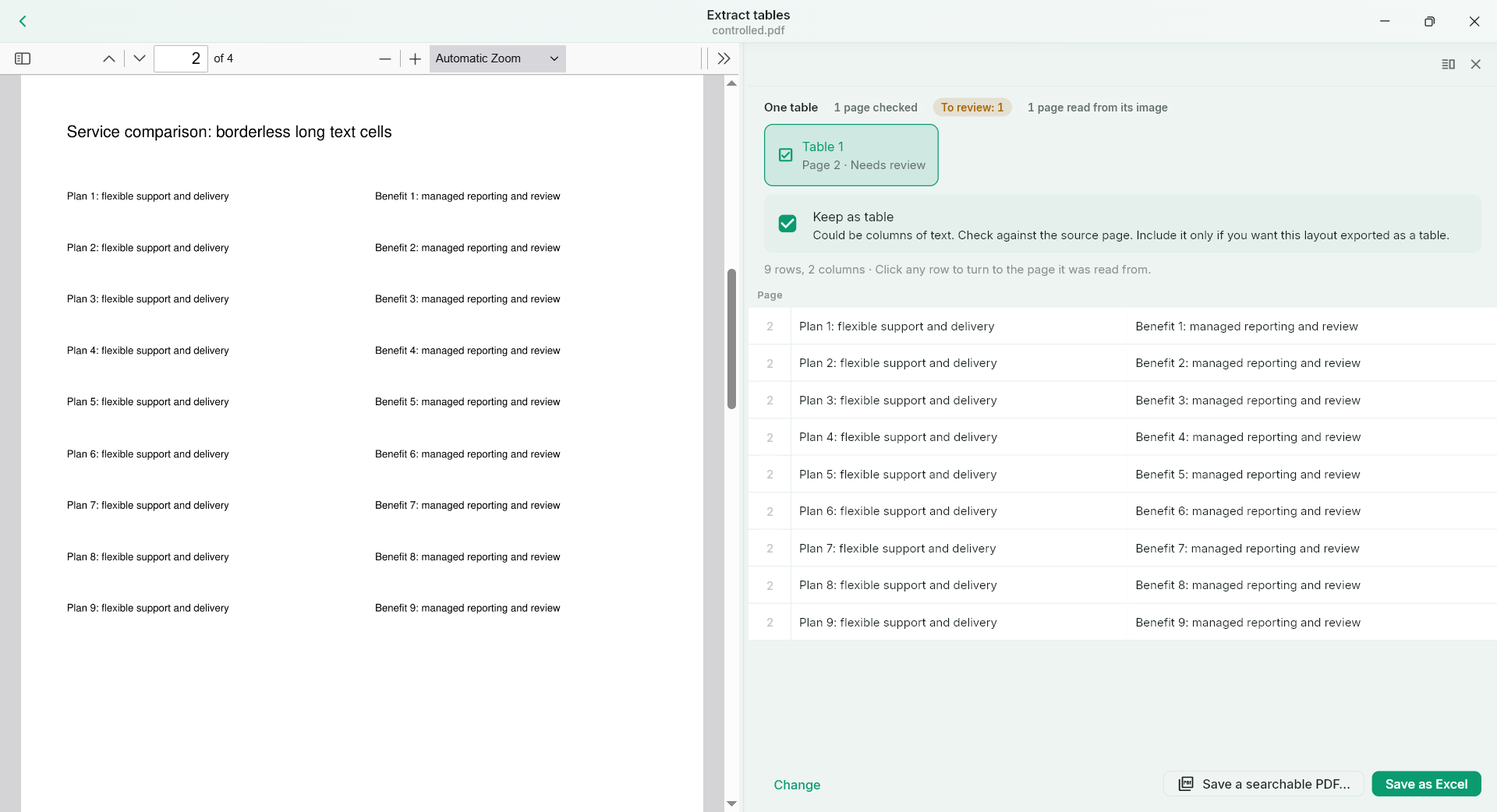
NurViewer considers aligned content as well as visible rules. When a layout is ambiguous, review the candidate and explicitly keep it as a table if that matches your purpose. This gives you control over the interpretation instead of silently exporting every list as a spreadsheet.
A PRACTICAL SEQUENCE
Start with the material you actually need.
Check representative material before deciding how much more to process.
- Recognise a page containing aligned, borderless content.
- Check the candidate columns against the original.
- Keep it as a table when appropriate, then export and review.
EDITION & SCOPE
Know the scope before you commit.
Manual confirmation chooses the interpretation; it cannot repair incorrect column boundaries or OCR text. Skew, dense layouts and weak alignment can still cause missed or extra tables.
Free has no trial expiry: common-format reading, ordinary PDF annotations and supported ordinary document/image-to-PDF export remain available. Recognition, specialist formats and advanced tools have their own allowances or tier requirements.
Compare Free, Standard and Pro →Images may retain historical layouts. Demonstration books, dictionaries and media are not bundled.
A USEFUL QUESTION
Will every list be forced into a table?
No. Ambiguous candidates can require your review, so a contents page or prose list is not silently assumed to be a valid table.
CONTINUE THE WORKFLOW
A useful next step.
Keep reading, understanding and organising around the same material.
Table recognition
Tables to editable Excel
A screenshot of a table is easy to send and hard to calculate with. Copying text often loses columns and empty cells, leaving you to rebuild the relationships before you can do any useful analysis.
Explore the workflow →Table recognition
Merged headers & empty cells
If a multi-level header is flattened or an empty cell disappears, the exported numbers can move under the wrong label. The result may look tidy while saying something different from the original.
Explore the workflow →Table recognition
Tables across PDF pages
A long report splits one table across several pages and repeats its header. Manually joining each fragment in a spreadsheet can introduce duplicate headings or put rows in the wrong order.
Explore the workflow →